


How to Convert XML to Excel With Multiple Worksheets
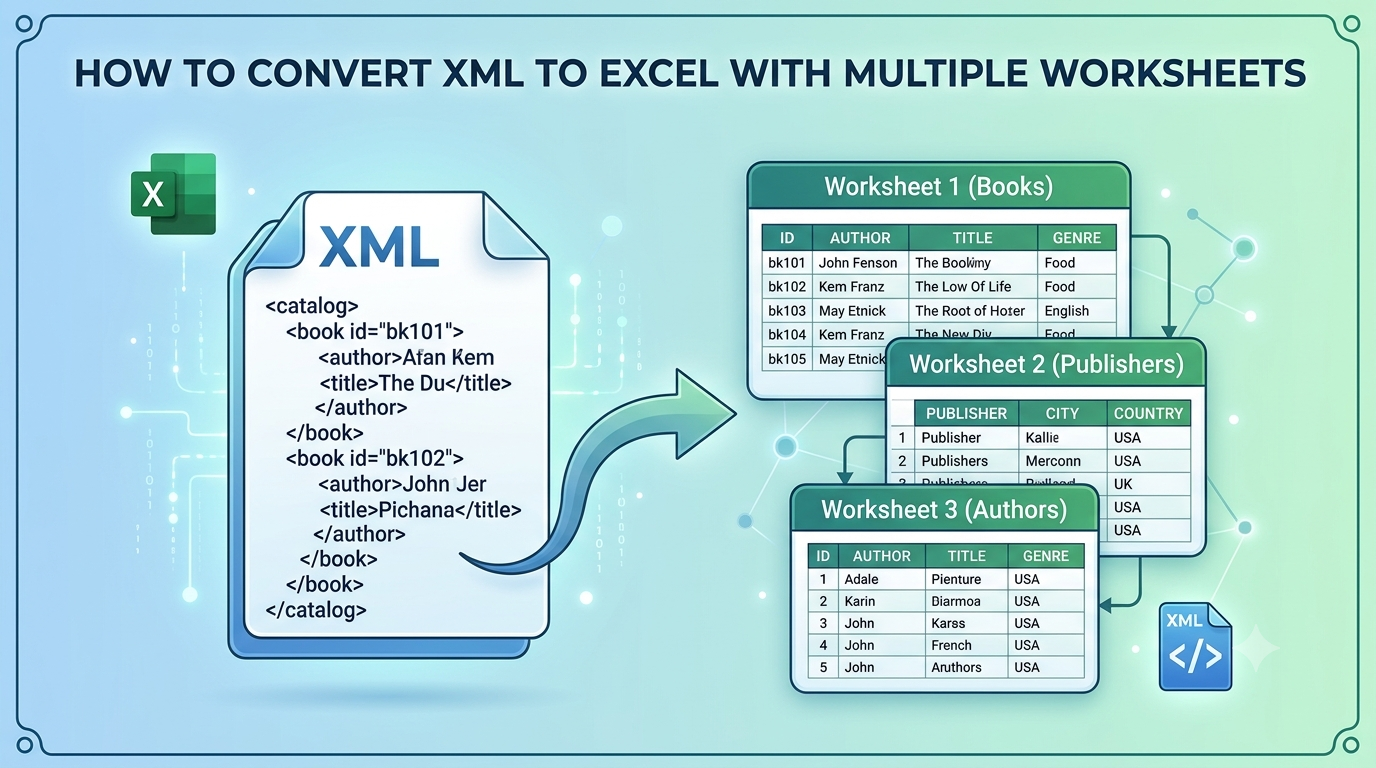
The fastest way to Convert XML to Excel With Multiple Worksheets is to load your XML file or folder into the SysTools XML Converter Tool, choose XLSX or XLS as the export option, set a destination path and click Export. To do it manually, use Excel’s Power Query to expand each nested element into its own table, then load each table to a separate worksheet.
Why You Need to Convert XML to Excel With Multiple Worksheets
XML stores data as a tree: a parent element holds children, and those children hold more children. An invoice has customer details, line items and tax records. A product feed has items, variants and prices. A flat sheet can’t hold that without duplicating parent values on every row or dropping child nodes. Splitting related data across worksheets keeps each table clean and lets you filter, pivot and reconcile it.
Most common error: forcing the whole file into one sheet. Repeated parent values inflate row counts and break pivot tables.
Pre-Conversion Checklist
I run through five checks before touching any XML file:
-
Well-formed XML: Open the file in a browser. A parse error means broken or unclosed tags.
-
Encoding: Confirm the declaration says UTF-8 (or the right encoding), or special characters will turn into garbage.
-
Repeating nodes: Identify which elements repeat, such as <Order> or <Item>. Each one is a candidate for its own worksheet.
-
Row limit: Excel holds 1,048,576 rows per sheet. Very large files need splitting or a database route.
-
Backup: Work on a copy, never the original.
Most common error: garbled characters from an encoding mismatch. Re-save the file as UTF-8 and convert again.
Method 1: Convert XML to Excel With Multiple Worksheets Using Professional Tool
This desktop tool suits large, nested, malformed or bulk XML. According to the product page, it keeps the original hierarchy, nested elements and tags. It supports batch conversion with no file-count limit and exports to 15+ formats, including XLSX and XLS. It runs offline on Windows 11/10 (64-bit) and macOS Big Sur through Sequoia.
Steps:
-
Install the tool. Download and install it on your PC or Mac.
-
Add your XML data. Use Add File(s) for single files, or Add Folder(s) to load a whole folder with its subfolders.
-
Preview the files. Confirm the tool lists every XML file you added.
-
Select the export option. Choose XLSX (or XLS for older Excel versions).
-
Set the destination path. Browse to the output folder.
-
Click Export. Open the workbook and check how your data landed across rows, columns and sheets.
Advantages: no coding, handles invalid XML by auto-correcting missing or broken tags, preserves folder structure, works offline.
Limitations: the free demo converts only 10 records per export option, and a full license starts at $49.
Most common error: thinking the demo failed because only 10 records appear. That is the trial limit, not a bug. On Windows, make sure .NET Framework 4.5 or later is installed. On a Mac, set the system region to the United States and the language to English.
Method 2: Convert XML to Excel With Multiple Worksheets Using Power Query
Power Query is built into modern Excel and is the best manual route for nested XML.
-
Go to Data > Get Data > From File > From XML and select your file.
-
In the Navigator, choose Transform Data.
-
Click the expand icon (double arrows) on columns showing “Table” or “Record” to flatten that level.
-
To create a second sheet, right-click the query and choose Reference, then expand a different nested element.
-
For each query, use Close & Load To > Table > New worksheet.
-
Rename each sheet so the data stays traceable.
Most common error: loading the first query and finding cells that just say “Table” or “Record”. You skipped the expansion step. Click the expand icon on that column.
Method 3: Convert XML to Excel With Multiple Worksheets Using XML Maps
-
Enable the Developer tab, then open Source to see the XML Maps pane.
-
Click XML Maps > Add and select your XML file. Excel may build a schema for you.
-
Drag each repeating element group onto a different worksheet.
-
Go to Developer > Import and select the XML file.
Most common error: a warning that the XML doesn’t reference a schema. Excel infers one, but the inferred map can’t handle overlapping repeating elements, so use Power Query or the converter for deeply nested files.
Method 4: Convert XML to Excel With Multiple Worksheets Using Python
If you’re comfortable with code, pandas does this cleanly:
python
import pandas as pd
orders = pd.read_xml("data.xml", xpath=".//Order")
items = pd.read_xml("data.xml", xpath=".//Item")
with pd.ExcelWriter("output.xlsx") as writer:
orders.to_excel(writer, sheet_name="Orders", index=False)
items.to_excel(writer, sheet_name="Items", index=False)
Most common error: an empty result caused by XML namespaces. Pass a namespaces dictionary to read_xml and use prefixed XPath expressions.
Which Method Should You Choose to Convert XML to Excel With Multiple Worksheets?
-
Bulk files, folders or malformed XML: Professional Tool
-
One nested file, comfortable with Excel: Power Query.
-
A fixed, schema-based XML format: XML Maps.
-
Repeatable automation in a pipeline: Python.
Most common error: using a manual method on hundreds of files. It works for one file but becomes a time sink at scale.
Troubleshooting: Convert XML to Excel With Multiple Worksheets Without Losing Data
-
Leading zeros vanish (ZIP codes, IDs): set the column type to Text before loading.
-
Dates convert incorrectly: check regional settings, or import dates as text first.
-
Child data is missing: you expanded only one nested level. Expand each level.
-
Excel hangs on a huge file: split the XML, or use a desktop converter that handles large files.
Pro Tips
-
Keep a key column, such as an order ID, in every child sheet so you can rejoin data later with lookups.
-
Convert a small sample first and verify row counts against the source before running the full batch.
-
Avoid online converters for sensitive XML such as invoices or patient records. An offline desktop tool keeps the data on your machine.
-
Record which nodes became which sheets. It saves hours when someone asks where a value came from.
Frequently Asked Questions
Q1. How do I convert XML to Excel?
Answer. Open the file through Excel’s Get Data > From XML option, or use a dedicated converter and export to XLSX.
Q2. Can Excel open XML files directly?
Answer. Yes, but complex nested files often arrive as unexpanded tables and need Power Query steps.
Q3. How do I convert many XML files to Excel at once?
Answer. Use a batch converter that accepts a whole folder. Manual methods need repeating for every file.
Q4. Will converting XML to XLSX keep the structure?
Answer. Only if the method preserves hierarchy. Check your output against the source before deleting anything.
Conclusion
Splitting XML across worksheets is about keeping parent-child data intact and readable. Power Query and Python work well for one-off or developer-led jobs. For folders, large files and malformed tags, the XML Converter is the faster route. Whichever method you pick, check the file first, convert a sample and verify the result. That is how you reliably convert XML to Excel With Multiple Worksheets without losing a single record.
- Technology for Students
- Admissions & Applications
- Online Courses
- Career and Jobs
- Campus Life
- Drinks
- Film
- Fitness
- Food
- Games
- Gardening
- Health
- Home
- Literature
- Music
- Networking For Students
- Insights
- Party
- Religion
- Shopping
- Sports
- Theater
- Wellness
- Education News
- Business & Finance For Students
- Security, Law & Crime Education
- Insurance
- Science & Technology For Students
 English
 Arabic
 French
 Spanish
 Portuguese
 Deutsch
 Turkish
 Dutch
 Italiano
 Russian
 Romaian
 Portuguese (Brazil)
 Greek