


How to Verify MBOX Mailbox Readiness Before PST Conversion
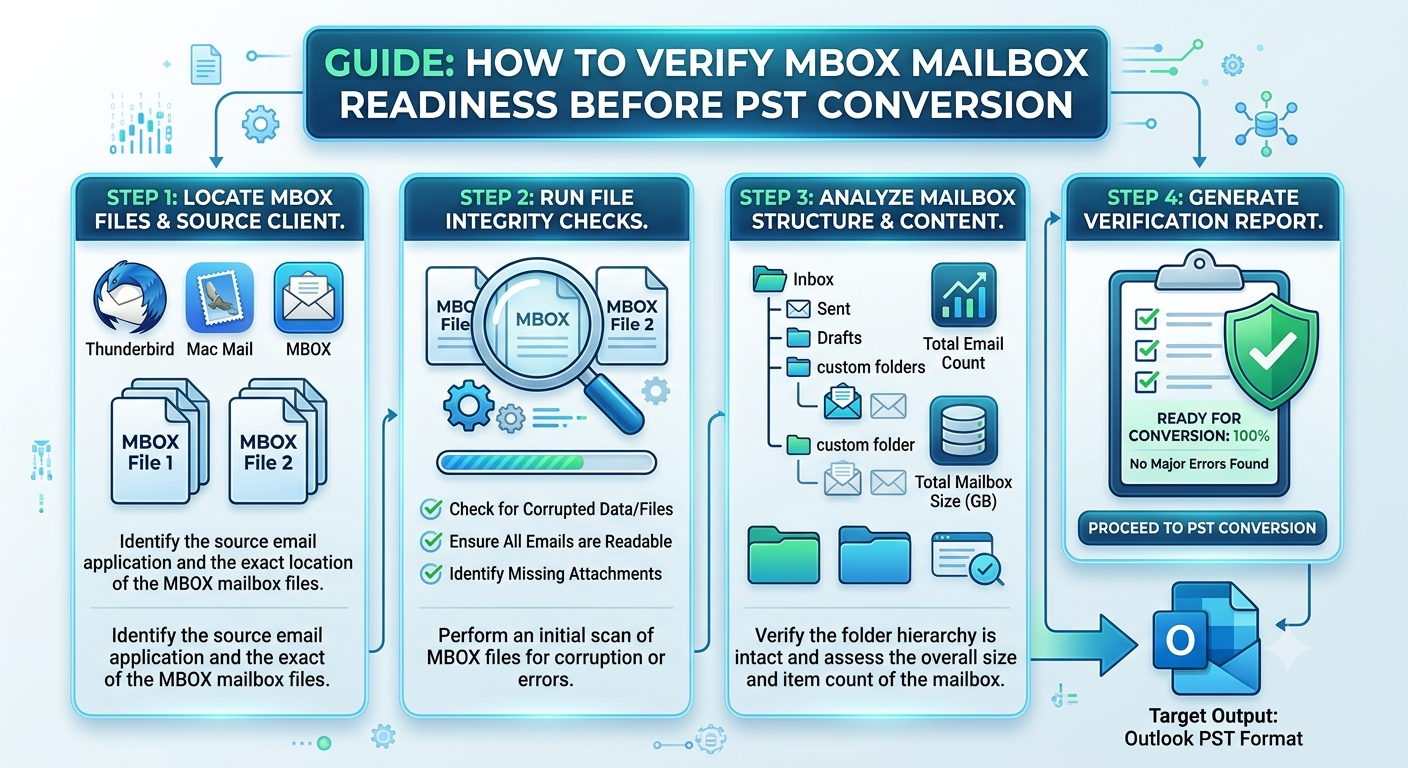
To verify MBOX mailbox readiness before PST conversion, check six things. Confirm the file is a valid MBOX with intact "From " separators, test that it isn't truncated or corrupt, and identify the exact MBOX variant. Then check the encoding and attachments, keep an untouched backup, and run a small pilot export. The MailPro+ MBOX to PST Converter Tool can preview the mailbox and convert it in one pass, so you can verify MBOX mailbox readiness before PST conversion without opening Outlook.
Why You Should Verify MBOX Mailbox Readiness Before PST Conversion
I've handled mailbox migrations for years, from small offices to large teams. Almost every failed MBOX-to-PST job I've seen had one cause: nobody checked the source file first. People assume an MBOX is an MBOX, and it isn't. A file exported from one client can behave very differently from one exported by another.
When I verify MBOX mailbox readiness before PST conversion, I'm trying to prevent three outcomes:
-
Missing emails after migration
-
Broken attachments or garbled characters
-
A conversion that hangs at 90% and has to be restarted
Most common error: Starting the conversion because the file opens in a mail client. Opening is not the same as being complete or uniform.
What "Mailbox Readiness" Actually Means
Mailbox readiness means the MBOX file is structurally valid, complete, readable, and small enough to land in a PST without hitting limits. Most guides cover only the first part. In practice, readiness has five layers: structure, integrity, content, scale, and safety.
Most common error: Treating readiness as a single yes/no check instead of five separate ones.
The 10-Point Checklist to Verify MBOX Mailbox Readiness Before PST Conversion
1. Identify the source client and MBOX variant
MBOX has several dialects: mboxo, mboxrd, mboxcl, and mboxcl2. They differ in how they escape "From " lines inside message bodies and whether they use Content-Length headers. A converter that assumes the wrong variant can split one message into two.
Common error: Assuming every .mbox file from every client uses the same format.
2. Check file extension and naming
Thunderbird stores folders as extensionless files, with a companion .msf index and .sbd folders for subfolders. Exports from other tools often use .mbox or .mbx. A mislabeled file is a classic cause of "no emails found."
Common error: Selecting the .msf index file instead of the actual mailbox file.
3. Validate message separators
Each message must begin with a line starting with "From " followed by a sender and date. On Linux or macOS, grep -c "^From " yourfile.mbox gives a rough message count. If the count is zero or wildly different from what you expect, the file isn't ready.
Common error: Editing the MBOX in a word processor, which silently changes line endings and breaks separators.
4. Test for truncation and corruption
Compare the file's size with the original source. Check whether the last message ends cleanly. Files cut off by a full disk or an interrupted download often look fine until the converter reaches the final messages.
Common error: Trusting a file copied from a cloud-sync folder without confirming the sync finished.
5. Check character encoding
Older archives often contain mixed encodings (UTF-8, ISO-8859-1, Windows-1252). Subjects with accents, or non-English names, show it first.
Common error: Discovering garbled subjects only after the PST is already built.
6. Inspect attachments
Look for very large attachments, nested messages (.eml inside an email), and inline images. Attachments are where most silent data loss happens.
Common error: Assuming the message count matches while attachments are quietly dropped.
7. Review the folder hierarchy
If you're migrating a whole profile, confirm subfolders (.sbd directories) are included. Converting only the top-level file flattens the tree.
Common error: Converting the Inbox file and forgetting that the Sent and Archive folders are separate files.
8. Estimate the PST size
Modern Unicode PST files default to a 50 GB limit, while legacy ANSI PST files cap at about 2 GB. A 40 GB MBOX can balloon past a limit once converted, so plan to split the output.
Common error: Ignoring size until Outlook becomes slow or refuses to open the PST.
9. Look for duplicates and junk
Archives that have been exported repeatedly often contain duplicate messages and old spam. Cleaning first shrinks the PST and speeds up conversion.
Common error: Migrating years of duplicates because "it's just a copy."
10. Back up, then run a pilot
Copy the MBOX untouched. Convert 100 to 200 messages first and open the result. This is the single most valuable step, and the one most blogs skip.
Common error: Running the full conversion on the only copy of the data.
Manual Methods to Check MBOX Readiness
You can inspect an MBOX by importing it into Thunderbird, opening it in a text editor, or running command-line counts. These work for small files.
Advantages
-
Free
-
Good for spot checks
-
No extra software
Limitations
-
Slow on files over a few GB
-
No reliable detection of corruption or encoding problems
-
Can't tell you how the data will look inside a PST
-
A text editor can crash or alter huge files
Common error: Opening a multi-gigabyte MBOX in a text editor and saving it, which can corrupt it.
How to Verify MBOX Mailbox Readiness Before PST Conversion Using Professional Software
The tool gives you a way to check the mailbox and convert it in one workflow. The exact screens may differ slightly by version, but the sequence is as follows.
-
Install and launch the MBOX to PST Converter Tool on a Windows machine, using the official page as your download source.
-
Add your MBOX files or folder. Choose a single file or a whole directory so subfolders are included.
-
Let the software scan the mailbox. A scan tells you whether the file loads and how many items it finds. This scan is the quickest way to verify MBOX mailbox readiness before PST conversion.
-
Preview messages and attachments. Click through a few emails, including ones with attachments and non-English text, to confirm they render correctly.
-
Select PST as the output format.
-
Apply options. Where available, use date or folder filters, and split the PST if your estimate is near the size limit.
-
Choose a destination folder on a drive with plenty of free space.
-
Start the conversion, then open the finished PST in Outlook and compare item counts per folder against your preview.
Common error: Skipping step 4 and trusting the scan count alone.
Advantages and Limitations of an Automated Tool
Advantages
-
Handles multiple MBOX variants without manual guesswork
-
Preview before export catches problems early
-
Works on large files without needing Outlook for the check
-
Preserves folders, attachments, and metadata
Limitations
-
Paid software for full-volume conversion
-
Needs adequate disk space for the output PST
-
A severely corrupted MBOX may still need repair or a clean re-export from the source client
-
Best results come when the source file is intact
Most-Searched Questions Answered Fast
How do I know if my MBOX file is corrupted?
Answer. Compare its size against the original and check that "From " separators are intact. Then scan it with a converter that reports unreadable items.
Can I open an MBOX file without an email client?
Answer. Yes, with a plain text editor for small files or an MBOX viewer for larger ones. Avoid saving changes.
Why does my PST have fewer emails than my MBOX?
Answer. Usually because of a wrong variant assumption, split separators, skipped subfolders, or filtered date ranges.
Is there a size limit for PST files?
Answer. Unicode PST defaults to 50 GB, while the legacy ANSI format stops near 2 GB.
Should I convert MBOX to PST in one go or in batches?
Answer. In batches if the mailbox is large. Splitting also makes any error easier to isolate.
Can I convert without losing attachments?
Answer. Yes, provided the source file is intact. Confirm with the preview step and a pilot export.
Final Thoughts
If you remember one thing, make it this: a clean migration is decided before you press Convert. Taking ten minutes to verify MBOX mailbox readiness before PST conversion saves hours of rework and, more importantly, protects emails that may be impossible to recover. Back up first, check structure and encoding, run a pilot, and validate the PST afterward. That routine is what separates a smooth migration from a stressful one.
- Technology for Students
- Admissions & Applications
- Online Courses
- Career and Jobs
- Campus Life
- Drinks
- Film
- Fitness
- Food
- Jogos
- Gardening
- Health
- Início
- Literature
- Music
- Networking For Students
- Insights
- Party
- Religion
- Shopping
- Sports
- Theater
- Wellness
- Education News
- Business & Finance For Students
- Security, Law & Crime Education
- Insurance
- Science & Technology For Students
 Portuguese (Brazil)
 English
 Arabic
 French
 Spanish
 Portuguese
 Deutsch
 Turkish
 Dutch
 Italiano
 Russian
 Romaian
 Greek