


Capacitive Touch Screen and LCD Display Screen: Building Better User Experiences
A good screen does more than display information. It helps someone finish a task without thinking about the technology underneath. Whether you are developing a medical monitor, retail kiosk, or smart home controller, pairing a capacitive touch screen with an LCD display screen can make that interaction feel natural. The challenge is choosing components that work together reliably, not simply selecting the brightest panel or the most responsive sensor.
Understanding the Two Layers
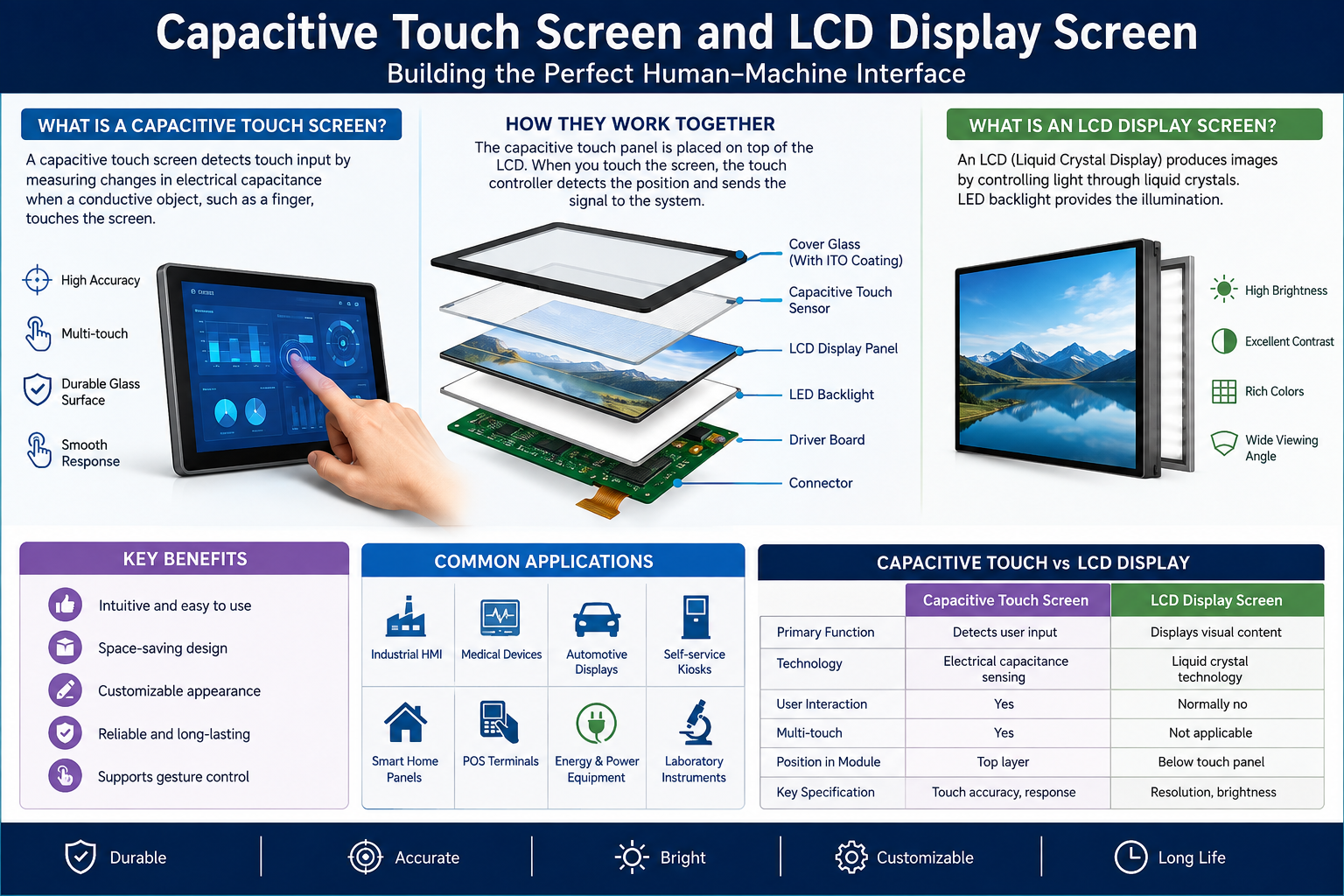
An LCD creates the image users see. Its liquid crystals regulate light from a backlight, while color filters form the picture. Resolution, brightness, viewing angle, and contrast determine how clearly information appears.
A capacitive sensor detects a finger or another conductive input by measuring changes in an electric field. In projected capacitive designs, a grid of transparent electrodes supports precise positioning and often multiple simultaneous touches.
These are different jobs. An LCD display screen handles visual output; a capacitive touch screen handles input. Manufacturers may combine both with cover glass, optical bonding, and a controller to produce one integrated module.
Why Integration Matters
Imagine a technician operating equipment in a noisy factory. Clear labels are useless if the touch interface misses commands, while accurate touch detection offers little value when glare hides the menu.
An effective combination delivers three benefits:
- Faster navigation: Direct gestures reduce the steps needed to select settings.
- Cleaner design: One flat surface can replace multiple physical switches.
- Flexible interfaces: Software can update buttons, languages, and workflows without redesigning the enclosure.
Integration also affects thickness, reflection, durability, and repairability. A visually attractive prototype may still fail in daily use if the stack is poorly matched.
Key Differences at a Glance
Design question Capacitive touch layer LCD display layer Primary purpose Detects touch input Presents images and text Important metrics Accuracy, latency, touch points Resolution, brightness, contrast Common concern Moisture or glove response Sunlight readability and viewing angles Typical electronics Touch controller Display driver and backlight circuitry
This comparison matters because solving one layer’s problem rarely fixes the other. Adjusting display brightness, for example, cannot correct inaccurate touch coordinates.
One frequent mistake is choosing the touch overlay after the display and enclosure are finalized. That sequence can create alignment issues, unwanted reflections, or incompatible cable locations. Discuss the full stack with suppliers early, including adhesives, cover lens thickness, and service requirements. Early coordination usually costs less than correcting a finished assembly during a rushed production rollout.
Choosing Specifications That Fit the Environment
Start with the location and the user’s task rather than a specification sheet. An indoor payment terminal has different priorities from an outdoor machine or a device cleaned with disinfectant.
Consider these factors before ordering samples:
- Visibility: Evaluate luminance, reflections, and viewing angles under actual lighting.
- Touch behavior: Test taps, swipes, edge accuracy, and accidental input with intended users.
- Surface durability: Match cover glass, coatings, and sealing to expected wear.
- Electrical compatibility: Confirm display interfaces, touch controller connections, voltage, and firmware support.
- Mechanical fit: Check active area, overall dimensions, mounting, and cable routing.
- Supply continuity: Ask about lifecycle, replacement options, and consistent calibration.
An LCD display screen with excellent laboratory measurements might still feel dim behind thick protective glass. Likewise, a capacitive touch screen tuned for dry fingers may require a different configuration for wet environments or gloves.
Design for Real People, Not Perfect Conditions
Great interfaces respect the realities of everyday operation. Buttons need generous target areas, especially when users are moving or distracted. Critical actions deserve confirmation, and error messages should explain what to do next.
Touch sensitivity must be validated across temperature and electromagnetic conditions. Water droplets can trigger false input, and standard capacitive sensing may struggle with ordinary gloves. Specialized controllers, tuning, or glove-compatible designs can improve performance, but claims should be verified through testing.
Visual accessibility matters equally. Use readable type, clear contrast, and layouts that remain understandable from the expected viewing distance. Test the complete assembly, not just individual components.
A Practical Testing Plan
Before committing to production, build a small evaluation matrix. Include representative lighting, operating temperatures, glove types, moisture exposure, and cleaning procedures where relevant. Observe how users complete routine tasks and record missed touches, delays, and misread text.
Then examine system-level details: startup behavior, controller communication, backlight stability, and performance after repeated use. When possible, compare samples from more than one configuration. A modest test investment can prevent expensive changes after tooling or certification.
Frequently Asked Questions
1. What is a capacitive touch screen?
It is an input surface that detects changes in an electric field, usually caused by a finger.
2. What does an LCD display screen do?
It creates visible images using liquid crystals and a backlight.
3. Can an LCD work without touch?
Yes. Many displays show information without any touch sensor attached.
4. Is capacitive touch the same as an LCD?
No. One detects input; the other produces visual output.
5. Does capacitive touch support multitouch?
Many projected capacitive systems do, depending on their controller and design.
6. Can users operate it with gloves?
Sometimes. Performance depends on glove material, sensor design, and controller tuning.
7. Are these screens suitable outdoors?
They can be, with appropriate brightness, sealing, optical treatment, and environmental validation.
8. What causes missed touches?
Possible causes include poor calibration, interference, moisture, or unsuitable sensitivity settings.
9. What is optical bonding?
It joins display layers with transparent adhesive to reduce internal reflections and improve robustness.
10. How should buyers compare suppliers?
Request samples, technical documentation, long-term availability details, and evidence of relevant testing.
- Technology for Students
- Admissions & Applications
- Online Courses
- Career and Jobs
- Campus Life
- Drinks
- Film
- Fitness
- Food
- Παιχνίδια
- Gardening
- Health
- Κεντρική Σελίδα
- Literature
- Music
- Networking For Students
- Insights
- Party
- Religion
- Shopping
- Sports
- Theater
- Wellness
- Education News
- Business & Finance For Students
- Security, Law & Crime Education
- Insurance
- Science & Technology For Students
 Greek
 English
 Arabic
 French
 Spanish
 Portuguese
 Deutsch
 Turkish
 Dutch
 Italiano
 Russian
 Romaian
 Portuguese (Brazil)